
LANU · PM156T
Manual Flex 15.6" Touch
With the LANU Flex 15.6" Touch you always have a second screen at hand. Extend your workspace, control the screen with your fingers or connect your game console to a bigger display. Often one cable is all you need.

01In the box and specifications
In the box
- 1× Flex 15.6" Touch monitor
- 1× Cover (doubles as stand)
- 1× USB power adapter
- 1× Mini-HDMI to HDMI cable
- 1× USB-A to USB-C cable
- 1× USB-C to USB-C cable
Specifications
| Model | PM156T |
|---|---|
| Screen size | 15.6 inch |
| Resolution | 1920 × 1080 (Full HD) |
| Panel type | IPS |
| Touchscreen | Yes |
| Refresh rate | 60 Hz |
| Response time | 5 ms |
| Contrast | 1000:1 |
| Viewing angle | 178° |
| Ports | 2× USB-C, mini-HDMI, 3.5 mm |
| Built-in speakers | Yes |
| Weight | 700 grams |
| Energy label | A |
| Warranty | 2 years |
02Your monitor
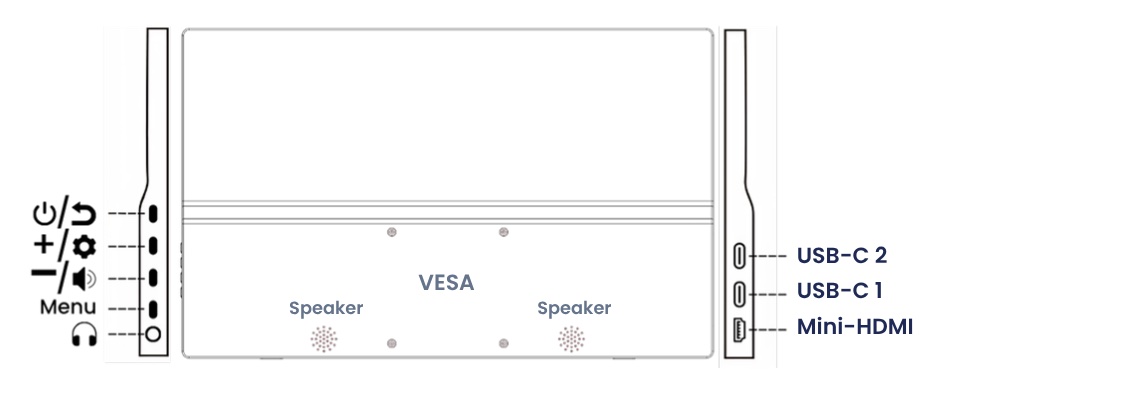
Ports
| USB-C 1 | Video + power + touch (1 cable) |
| USB-C 2 | Power (+ touch with method B) |
| Mini-HDMI | Video via HDMI |
| 3.5 mm | Headphones |
Buttons
| Button | Short press | Long press |
|---|---|---|
| Power / Back | Go back or close menu | On / off |
| + | Brightness | – |
| – | Volume | – |
| Menu | Open menu | – |
Quick adjust. Brightness: press +, adjust with + and –. Volume: press –, adjust with + and –.
In the menu. + / –: move up, down or change a value. Menu: select or confirm. Power / Back: go back or close.
03Connecting the monitor
Choose the method that suits your device.
AOne cable (USB-C)RECOMMENDED
Laptops, MacBooks, tablets and smartphones with a USB-C port that supports video.

- Plug the USB-C to USB-C cable into USB-C 1 on the monitor.
- Plug the other end into the USB-C port of your device.
- Done: video, touch and power through one cable.
Smartphone: video only, touch does not work.
BTwo cables (HDMI + USB)
PCs, older laptops and game consoles.
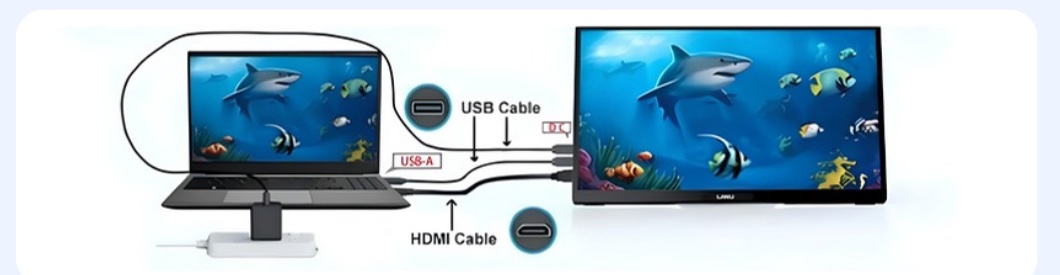
- Mini-HDMI into the monitor, HDMI into your device → video
- USB-C into USB-C 2, USB-A into your computer → touch + power
Want to use touch? Plug the USB cable into your computer, not into the adapter. Via the adapter the monitor only gets power.
Need more power? Does the screen turn off or respond poorly to touch? Connect the USB power adapter or a power bank to the free USB-C port.
04Setting up
Windows
- Connect the monitor and wait for the image.
- Go to Settings › System › Display.
- Choose Extend (extra workspace, recommended) or Duplicate (same image on both screens).
- Monitor standing upright? Set Display orientation to Portrait.
Press Windows key + P to quickly switch between extend and duplicate.
Mac
- Go to System Settings › Displays.
- Select the LANU monitor and under Use as choose extended display or mirror.
- To rotate, set Rotation to 90°.
macOS is not designed for touchscreens, so touch only works to a limited extent on a Mac. As an extra display the monitor works fully.
The on-screen menu
Press Menu to open the menu. Here you'll find all other settings, such as language. Browse with + and –, select with Menu and go back with Power / Back.
05Troubleshooting
No image or "No Signal"
Is the cable in USB-C 1? Doesn't your USB-C port support video? Use method B (HDMI). Try another port on your device.
Touch doesn't work
Method B: is the USB cable plugged into your computer (not the adapter)? Method A: is your device's USB-C port USB 3.1 or higher? Smartphone: touch is not supported.
No sound
Select the LANU monitor as sound output on your computer and raise the volume with the – button.
Monitor not detected in Windows
Click Detect under Settings › System › Display. Still nothing? Restart your computer or try another cable.
Screen flickers, turns off or restarts
The monitor isn't getting enough power. Connect the USB power adapter to the free USB-C port, or lower the brightness.
Touch responds on the wrong screen (Windows)
Go to Control Panel › Tablet PC Settings › Setup and tap the LANU monitor when asked.
06Safety and service
- Use the supplied cables and adapter, or replacements with the same specifications.
- Keep the monitor away from water, moisture, direct sunlight and heat.
- Place the monitor on a stable, flat surface.
- Do not open the housing. Leave repairs to a qualified technician.
- Do not let liquids or objects enter the ports.
- Route cables so no one can trip over them.
- Take regular breaks to prevent eye strain.
- Don't leave a still image on screen for hours; use a screen saver.
Service and warranty. This monitor comes with a 2-year warranty. Questions or need help? Email info@lanumonitor.com.
Cleaning. Disconnect the monitor and use a dry, soft cloth. No cleaning agents or solvents.
Storage and transport. Store the monitor in a dry, dust-free place, preferably in the cover or original box.
Children. Not suitable for children under 3: small parts and plastic packaging (choking hazard). Keep cables out of reach of children.
Environment and CE. Do not dispose of with household waste: take it to a collection point for electronics (WEEE). The packaging is recyclable. Complies with European directives (CE).