
LANU · PM156
Manual Flex 15.6" Full HD
With the LANU Flex 15.6" Full HD you always have a second screen at hand. Extend your workspace or connect your game console to a bigger display. Often one cable is all you need.

01In the box and specifications
In the box
- 1× Flex 15.6" Full HD monitor
- 1× Cover (doubles as stand)
- 1× USB power adapter
- 1× Mini-HDMI to HDMI cable
- 1× USB-A to USB-C cable
- 1× USB-C to USB-C cable
Specifications
| Model | PM156 |
|---|---|
| Screen size | 15.6 inch |
| Resolution | 1920 × 1080 (Full HD) |
| Panel type | IPS |
| Touchscreen | No |
| Refresh rate | 60 Hz |
| Response time | 5 ms |
| Contrast | 1000:1 |
| Viewing angle | 178° |
| Ports | 2× USB-C, mini-HDMI, 3.5 mm |
| Built-in speakers | Yes |
| Weight | 700 grams |
| Energy label | A |
| Warranty | 2 years |
02Your monitor
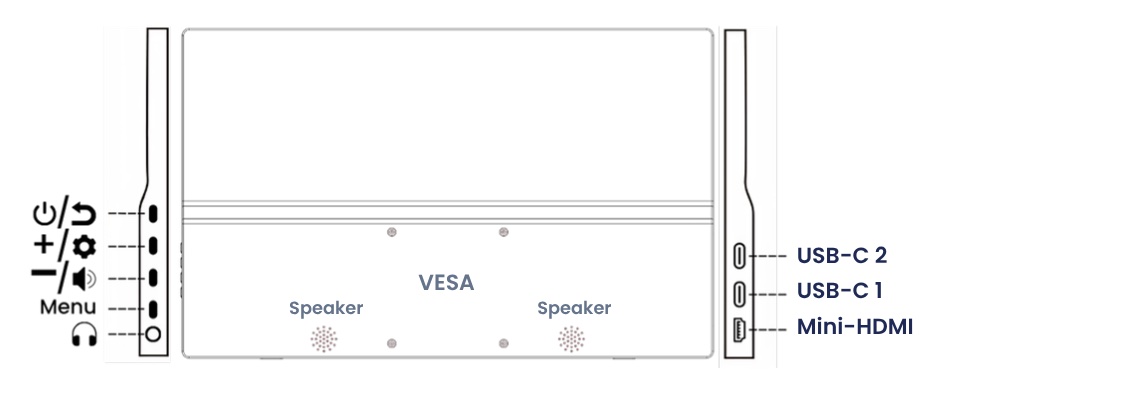
Ports
| USB-C 1 | Video + power (1 cable) |
| USB-C 2 | Power |
| Mini-HDMI | Video via HDMI |
| 3.5 mm | Headphones |
Buttons
| Button | Short press | Long press |
|---|---|---|
| Power / Back | Go back or close menu | On / off |
| + | Brightness | – |
| – | Volume | – |
| Menu | Open menu | – |
Quick adjust. Brightness: press +, adjust with + and –. Volume: press –, adjust with + and –.
In the menu. + / –: move up, down or change a value. Menu: select or confirm. Power / Back: go back or close.
03Connecting the monitor
Choose the method that suits your device.
AOne cable (USB-C)RECOMMENDED
Laptops, MacBooks, tablets and smartphones with a USB-C port that supports video.

- Plug the USB-C to USB-C cable into USB-C 1 on the monitor.
- Plug the other end into the USB-C port of your device.
- Done: video and power through one cable.
BTwo cables (HDMI + USB)
PCs, older laptops and game consoles.
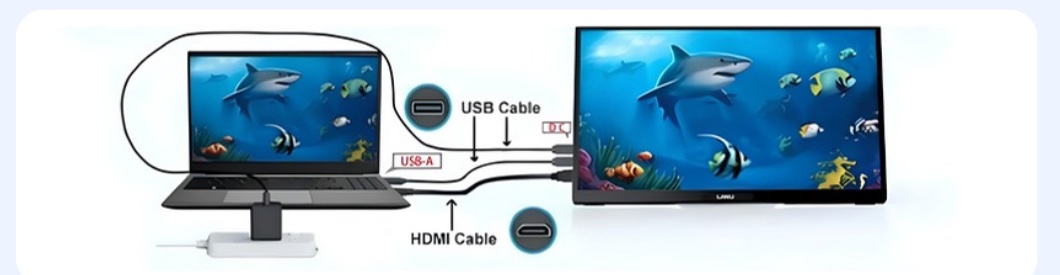
- Mini-HDMI into the monitor, HDMI into your device → video
- USB-C into USB-C 2, USB-A into the power adapter or a USB port of your device → power
Need more power? Does the screen turn off? Connect the USB power adapter or a power bank to the free USB-C port.
04Setting up
Windows
- Connect the monitor and wait for the image.
- Go to Settings › System › Display.
- Choose Extend (extra workspace, recommended) or Duplicate (same image on both screens).
- Monitor standing upright? Set Display orientation to Portrait.
Press Windows key + P to quickly switch between extend and duplicate.
Mac
- Go to System Settings › Displays.
- Select the LANU monitor and under Use as choose extended display or mirror.
- To rotate, set Rotation to 90°.
The on-screen menu
Press Menu to open the menu. Here you'll find all other settings, such as language. Browse with + and –, select with Menu and go back with Power / Back.
05Troubleshooting
No image or "No Signal"
Is the cable in USB-C 1? Doesn't your USB-C port support video? Use method B (HDMI). Try another port on your device.
No sound
Select the LANU monitor as sound output on your computer and raise the volume with the – button.
Monitor not detected in Windows
Click Detect under Settings › System › Display. Still nothing? Restart your computer or try another cable.
Screen flickers, turns off or restarts
The monitor isn't getting enough power. Connect the USB power adapter to the free USB-C port, or lower the brightness.
06Safety and service
- Use the supplied cables and adapter, or replacements with the same specifications.
- Keep the monitor away from water, moisture, direct sunlight and heat.
- Place the monitor on a stable, flat surface.
- Do not open the housing. Leave repairs to a qualified technician.
- Do not let liquids or objects enter the ports.
- Route cables so no one can trip over them.
- Take regular breaks to prevent eye strain.
- Don't leave a still image on screen for hours; use a screen saver.
Service and warranty. This monitor comes with a 2-year warranty. Questions or need help? Email info@lanumonitor.com.
Cleaning. Disconnect the monitor and use a dry, soft cloth. No cleaning agents or solvents.
Storage and transport. Store the monitor in a dry, dust-free place, preferably in the cover or original box.
Children. Not suitable for children under 3: small parts and plastic packaging (choking hazard). Keep cables out of reach of children.
Environment and CE. Do not dispose of with household waste: take it to a collection point for electronics (WEEE). The packaging is recyclable. Complies with European directives (CE).